DocMorris Partner API Guide - Partner Logistics
Valid for the following countries: (DE)
🗓 Last Update: July 2025
🌎 What is DocMorris Marketplace?
The DocMorris Marketplace is a platform where different partners ("sellers") offer their products to end customers. When a customer places an order containing products from multiple sellers, the system splits it into SubOrders, one for each seller.
Each partner is responsible for:
- Reading and processing their own SubOrders.
- Preparing the products.
- Notifying shipment pickup by a courier.
- Cancelling orders when needed.
You only ever interact with your assigned SubOrders.
🔄 Order Lifecycle at a Glance
- 🔐 Authenticate via API (JWT)
- 📆 Read new or updated SubOrders
- 📊 Get order details
- 🚚 Get available couriers
- 📦 Notify Shipment Pickup
- 💬 Cancellation Reasons
- ❌ Cancel SubOrder
✨ Before You Start
What is GraphQL?: basic concepts and how GraphQL works
Visit the Development Environment page to:
- Try the API in Apollo Studio
- Use the Postman Collection
🔐 Authentication
[Partner Home - Login Page]
Authentication via API, to access the private resources of the system is done via JWT.
Use the getApplicationToken mutation to obtain a JWT:
mutation GetApplicationToken($username: String!, $password: String!) {
  getApplicationToken(username: $username, password: $password) {
    tokens {
      accessToken { value expiresIn }
      refreshToken { value expiresIn }
    }
  }
}
Add this JWT to the Authorization header of all subsequent requests.
Bearer <accessToken>
If you use Postman to test your requests, you have to add JWT as an Authentication Header.
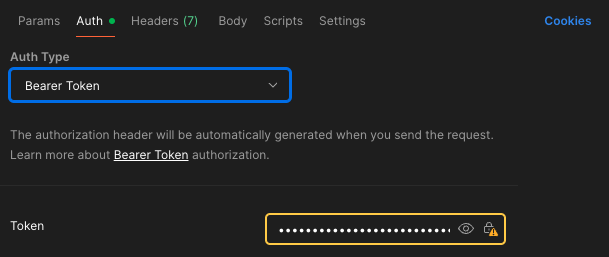
[Add JWT in Postman]
Considerations:
- TTL: 1 hour
- Each request returns a new JWT
For more info about authentication, see the Authentication Section.
🔍 Read New Orders
Once successfully authenticated, the first use case we may need is to read new orders. A new order is always understood as an order that has not been prepared, processed or shipped. In the Partner Home Web you can see them as shown in the image below
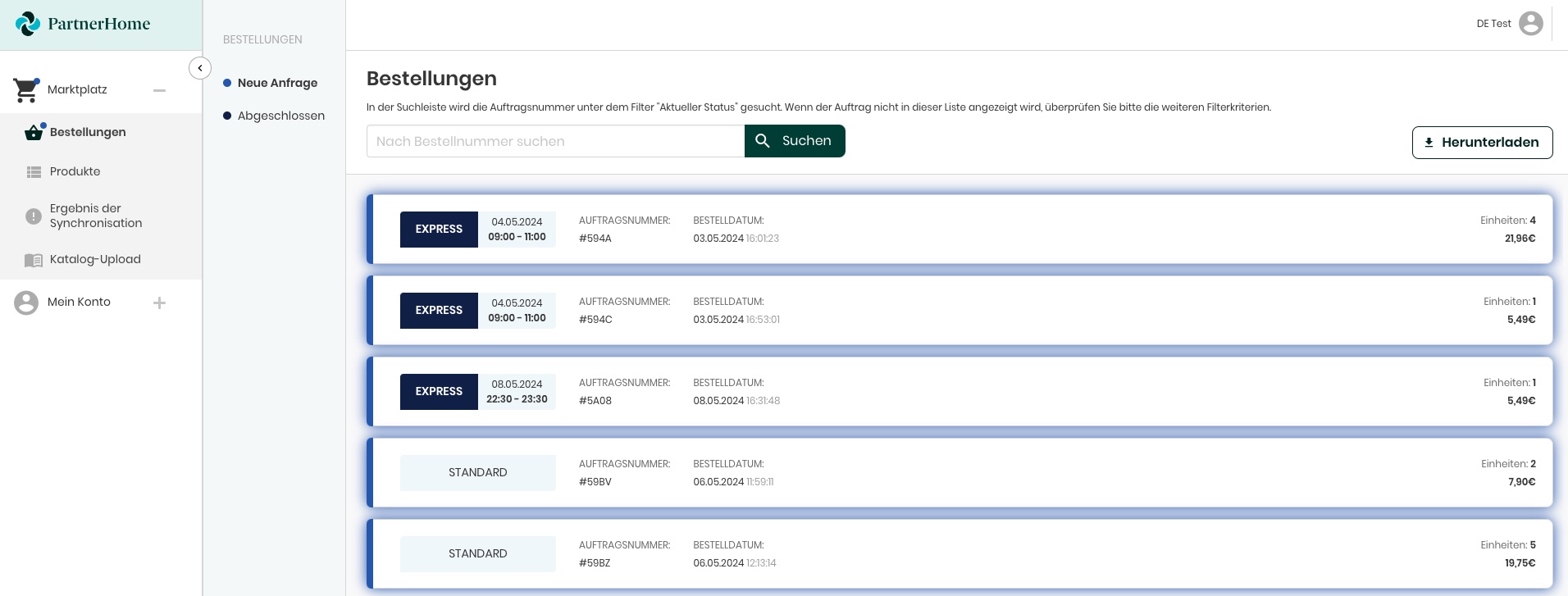
[Partner Home - New Orders Page]
In our architecture, we do not have some "direct parameters" such as the status of an order.
Therefore, to perform various order reading operations, we need to use a combination of queries and filters. This allows us to retrieve the necessary order data based on specific criteria.
First of all, let's assume that we are going to request orders that have been modified within the last two hours (for example). Do not extend the range too far, to avoid these problems, it is not recommended to use a range longer than 3 days.
How to get new orders and how to get orders not processed with changes
- Get New SubOrders: We have to use "updatedAt" filter:
"updatedAt": {
    "from": "2024-06-01T10:00:00+0000",
    "to": "2024-06-01T12:00:00+0000"
},
- Pending to prepare SubOrders: We have to use "hasShipment" = false filter:
"hasShipment": {
  "eq": false
}
- SubOrders already Shipped: We have to use "hasShipment" = true filter:
"hasShipment": {
  "eq": true
}
You can use the orders query with a combination of filters:
{
  "filters": {
    "updatedAt": {
      "from": "2024-06-01T10:00:00+0000",
      "to":   "2024-06-01T12:00:00+0000"
    },
    "hasShipment": { "eq": false }
  }
}
Always use short time ranges to reduce load (max 3 days).
💡COMMON QUESTION:
- ❓ How the API Knows what are my SubOrders if an Order that can contain several subOrders from several partners?
- 💬 Our API knows your SubOrders because you are authenticated as a specific partner with your JWT. The API filters the orders based on your partner ID, so you only receive the SubOrders that belong to you.
📚 IMPORTANT CONCEPTS:
Please consider the limitations of the Rate Limit
To read the cancellations, as well as the shipments, it is necessary to request the Get Order Detail Query, not this Search Orders query.
An EXPRESS order is an order with a delivery commitment on the same day the order is placed, and usually has a delivery time slot associated with it.
A STANDARD order is an order with a delivery commitment of 24/48h, it does not have the urgency of an EXPRESS order.
The deliveryCommitment it is the commitment to deliver an order within the contracted period.
In this case, you will always find a single subOrder, as the partner only receives its part of the order, if an order is made up of several products sold by different partners.
So, if you want to read "new orders" using API, you have to combine filters, in this case the filter "hasShipment = false", as you can see in the following example:
Timestamps and/or datetime are in UTCGet orders query body
query Orders($pagination: PaginationArgs, $filters: OrdersFilter) {
  orders(pagination: $pagination, filters: $filters) {
    collection {
      id
      code
    }
  }
}
Get orders query variables
{
  "pagination": {
    "page": 1,
    "size": 50
  },
  "filters": {
    "hasShipment": {
      "eq": false
    }
  }
}
You can check pagination options HERE
You can check Orders Filters HERE
🔢 Get Order Details
When we want to work with a specific order, we want to know all its details. For that, as we see in the Partner Home Web, by clicking on the order, we see its details.

[Partner Home - Order Detail Page]
Using the API, for this use case we should use the query Order, and ask for all the details we want. One of the advantages of our GraphQL-based API is that we can request only the data we are interested in, reducing response times and data volumes.
Use the order query with the SubOrder ID to fetch:
- Product list
- Shipping info
- Cancellation history
- Delivery commitment
Add header:
locale: de_DE(for Germany)
📚 IMPORTANT CONCEPTS:
In this case, you have to add another HEADER:
KEY: locale
VALUE: de_DE (for Germany)
Below is an example of a very complete request:
Get order query body
query Query($orderId: ID!) {
  order(id: $orderId) {
    approvedAt
    code
    createdAt
    id
    subOrders {
      cancellations {
        createdAt
        id
        shipment {
          id
        }
        status
        type
      }
      customerShippingCost {
        amount
        currency
      }
      deliveryCommitment
      id
      items {
        id
        unitsToSend
        product {
          eans {
            code
          }
          id
          name
          nationalCodes {
            acronym
            code
            country
          }
        }
        unitPrice {
            amount
            currency
        }
        vat
        cancellations {
            status
            type
            reason
            units
        }
      }
      orderId
      seller {
        externalId
      }
      totalPricePerUnitsToSend {
        amount
        currency
      }
      totalPriceWithDiscountPerUnitsToSendWithShippingCosts {
        amount
        currency
      }
      cancellations {
        id
        status
        type
        createdAt
        shipment {
            id
        }
      }
      shipments {
        costs {
          amount
          currency
        }
        courier {
          id
          name
        }
        delivery {
          commitment
          type
        }
        id
        status
        timeSlot {
          from
          to
        }
        trackingNumber
      }
    }
    updatedAt
    user {
      id
      profile {
        birthday
        email
        gender
        languageCode
      }
    }
    shippingAddress {
      addressDetails
      administrativeArea
      city
      country
      lastName
      name
      phone
      postalCode
      street
      streetNumber
    }
    billingAddress {
      addressDetails
      administrativeArea
      city
      country
      lastName
      name
      phone
      postalCode
      street
      streetNumber
    }
  }
}
Get order query variables
{
  "orderId": "df884a86-7111-4d37-b3b9-39c7af8d828e"
}
Note that, depending on the data you are interested in, you can implement multiple case-oriented combinations. For example, it is not necessary to ask for shipping data, if we have previously asked for orders that DO NOT HAVE SHIPPING.
Likewise, in the same way, we can obtain data on orders with cancellations.
🚚 Get Available Couriers
Once the partner has processed the order and has it ready for shipment, it is time to generate the request for collection of the package by the courier. To do this, we will first need to obtain information about the couriers available to ship the order to the customer destination country, providing country code.
IMPORTANT: THe country code must be the customer destination country code Country code format: ISO 3166-1 alfa-2 (Example: DE for Germany, ES for Spain, etc.)
We can do this using the query Couriers.
Use the couriers query with the customer country code:
query Couriers($countryCode: String!) {
  couriers(countryCode: $countryCode) {
    id
    name
  }
}
Couriers query variables
{
  "countryCode": "DE"
}
Example of Response
{
  "data": {
    "couriers": [
      {
        "id": "43ab108a-3cf6-45e2-a31b-ab877f1c989a",
        "name": "ANGEL BRINGTS"
      },
      {
        "id": "9e9ae0be-9e94-4757-8b51-5e609a257b50",
        "name": "AUSTRIAN POST"
      },
      {
        "id": "4efd743c-b8e7-487c-9de1-146ec1c26486",
        "name": "DHL EXPRESS"
      },
      {
        "id": "33447290-b7a8-4c5f-8108-961fe7026b8e",
        "name": "DHL PARCEL"
      },
      {
        "id": "a9a27976-ada3-4ac6-b242-661220f4fa07",
        "name": "DPD"
      },
      {
        "id": "7274f740-f7e1-4271-9803-902321ecd7cf",
        "name": "GEL EXPRESS"
      },
      {
        "id": "7d42b29f-5f3c-4136-a6a9-e0442fa9e7ff",
        "name": "GLS"
      },
      {
        "id": "438195f1-612e-4bce-9c8c-00b83cc1cdd4",
        "name": "HERMES"
      },
      {
        "id": "a703d58e-13d5-4017-b715-f60abce60e17",
        "name": "PARCEL ONE"
      },
      {
        "id": "2d21925f-64dc-44a4-89ad-ae448f5ab3cb",
        "name": "SPRING GDS"
      },
      {
        "id": "84fc8499-b43f-47aa-ad45-06f33b816afc",
        "name": "TRANSOFLEX"
      },
      {
        "id": "55400e26-3f8b-4da7-87ea-acb3920d1ee5",
        "name": "UNKNOWN COURIER"
      },
      {
        "id": "5679119a-c94a-4422-9d08-fe7d352d41c5",
        "name": "UPS"
      },
      {
        "id": "3d9b2780-8f57-406c-a68d-e734119319d5",
        "name": "WARENPOST"
      }
    ]
  }
}
This step is necessary to obtain the courier's UUID with which we will later notify the shipment.
📦 Notify Shipment Pickup
The process of generating the shipment, and notifying the courier to come and collect the parcel, on the Partner Home Web is extremely simple. All you have to do is click on the dedicated button.
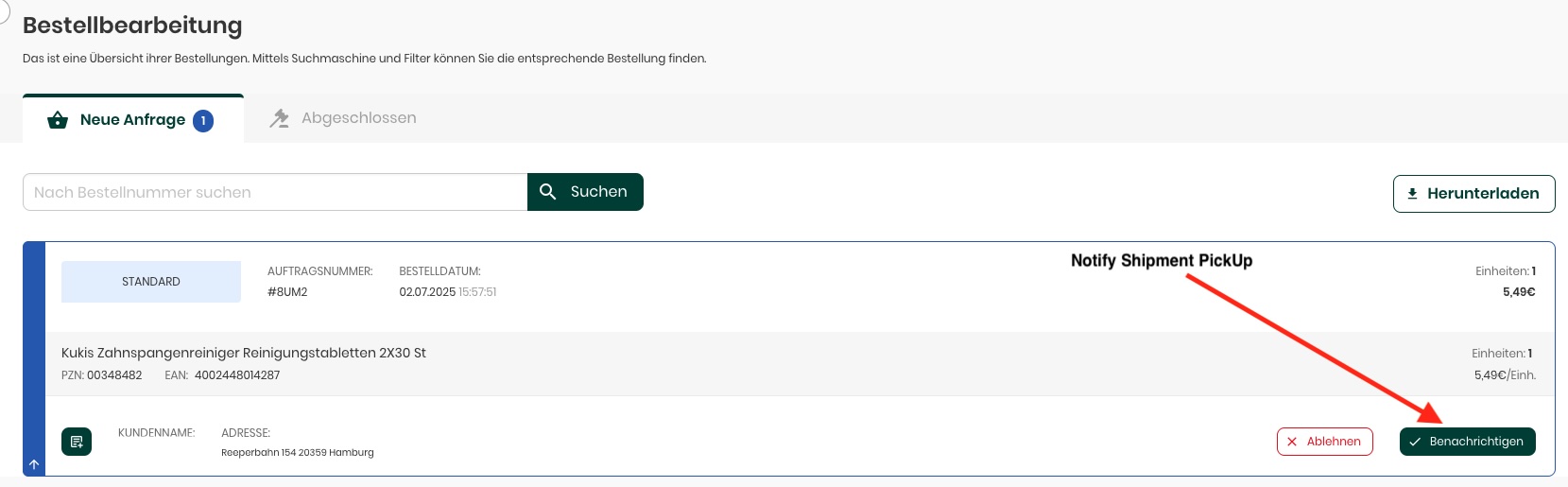
[Partner Home - Notify Shipment PickUp]
When using the API, you have to include several pieces of information, which we can already obtain if we have followed all the steps above.
Use the notifyShipmentPickup mutation:
mutation NotifyShipmentPickup(
  $orderId: ID!,
  $subOrderId: ID!,
  $sellerId: ID!,
  $products: [NotifyShipmentPickupProductsInput!]!,
  $courierId: ID,
  $trackingNumber: String
) {
  notifyShipmentPickup(
    orderId: $orderId,
    subOrderId: $subOrderId,
    sellerId: $sellerId,
    products: $products,
    courierId: $courierId,
    trackingNumber: $trackingNumber
  ) {
    message
    errors { code message }
  }
}
Required fields:
orderId: The Order UUIDsubOrderId: The SubOrder UUIDsellerId: The Seller UUIDproducts: list of productId + unitsToSend
Optional fields:
courierId: UUID of the selected CouriertrackingNumber: The tracking number provided by the courier
Related links:
Queries
Types
NotifyShipmentPickUp query body
mutation NotifyShipmentPickup($orderId: ID!, $subOrderId: ID!, $sellerId: ID!, $products: [NotifyShipmentPickupProductsInput!]!, $courierId: ID, $trackingNumber: String) {
    notifyShipmentPickup(orderId: $orderId, subOrderId: $subOrderId, sellerId: $sellerId, products: $products, courierId: $courierId, trackingNumber: $trackingNumber) {
        message
        errors {
            code
            message
        }
    }
}
NotifyShipmentPickUp query variables
{
  "orderId": <mandatory_value>,
  "subOrderId": <mandatory_value>,
  "sellerId": <mandatory_value>,
  "products": <mandatory_value>,
  "courierId": <optional_value>,
  "trackingNumber": <optional_value>,
}
How to obtain NotifyShipmentPickUp query variables
We are going to work with a SubOrder, because it is the one that contains all the information we need to notify the shipment pickup.
So first of all we need an Order. Because that contains one or multiple SubOrders
- You can obtain an specific order following this: 04 - Get Order Detail.
- You can obtain multiple orders and notify the order that we want following this: 02 - Read orders.
To obtain the couriers, we can follow this: 05 - Couriers.
orderId:
You can get the orderId from the Order Type, the field is Order.id.
subOrderId:
You can get the subOrderId from the field SubOrder.id.
sellerId:
You can get the sellerId from the field SubOrder.seller.externalId.
products:
The products field is an array of NotifyShipmentPickupProductsInput, which contains the products that are going to be shipped.
You can obtain the productIds from the field SubOrder.items.product.id, and the units to send from the field SubOrder.items.unitsToSend.
courierId:
You can obtain the courierId from the Couriers Type, the field is Courier.id.
trackingNumber:
Having the tracking number depends directly on the courier you work with. If you hire a courier that has this functionality, and is managed independently, it can be added at the time of making the request, but it is not strictly necessary.
The referenced mutation for this use case is notifyShipmentPickup
Example of NotifyShipmentPickUp query variables
{
  "orderId": "7c56220b-1a5d-4ce6-8781-002256420208",
  "subOrderId": "0afc73b2-b6ff-4f25-a2b5-658a89c504cd",
  "sellerId": "c706c42e-4701-483d-8573-01e8531610ec",
  "products": [
    {
      "productId": "03fc770a-8ad2-4d3b-962a-25fbef44d4e2",
      "unitsToSend": 2
    }
  ],
  "courierId": "df884a86-7111-4d37-b3b9-39c7af8d828e",
  "trackingNumber": "1234567890"
}
💬 Cancellation Reasons
In the case of having to cancel an order, a prerequisite is to specify the reason for canceling the order, with one of the predefined reasons that the system has.
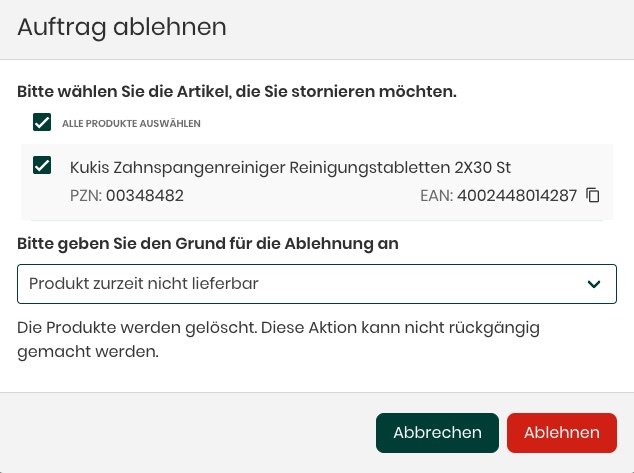
[Partner Home - Order Cancellation]
As you can see, we always have to select the products of the order, which we want to cancel, and the reason for the cancellation.
Using the API, we have to get those cancellation reasons before, using the query orderReasons.
Reasons query body
query Reasons {
  orderReasons {
    reasons { value }
    type
  }
}
Reasons query variables
{
  "filters": {
    "type": "CANCELLATION"
  }
}
Example of Response
{
  "data": {
    "orderReasons": [
      {
        "reasons": [
          {
            "value": "product_not_available"
          },
          {
            "value": "staff_not_available"
          },
          {
            "value": "technical_issue"
          },
          {
            "value": "other_reason"
          }
        ],
        "type": "cancellation"
      }
    ]
  }
}
📚 IMPORTANT CONCEPTS:
The cancellation reasons do not change often. We recommend making a precautionary request every X amount of time, to ensure that they remain the same or not, but it is not necessary to request them every time. We recommend storing them in a cache system with a reasonable TTL, e.g. One week.
To optimize performance, we recommend adding this in cache with TTL of 7 days, it rarely changes.
❌ SubOrder Cancellation
You can cancel all or part of a SubOrder or units of one product, only before shipment is notified.
📚 IMPORTANT CONCEPTS:
If the pickup has been notified, it cannot be canceled.
To use this feature, we have to use the mutation orderCancel
Use the orderCancel mutation:
mutation Cancel(
  $orderCancelId: ID!,
  $cancellationType: CancellationType!,
  $items: [CancellationItemInput!]!
) {
  orderCancel(
    id: $orderCancelId,
    cancellationType: $cancellationType,
    items: $items
  ) {
    message
    errors { code message }
  }
}
Order Cancellation query variables
{
  "orderCancelId": <you_have_to_set_a_uuid>,
  "cancellationType": <cancellation_type>,
  "items": <cancellation_items>
}
Required fields:
orderCancelId: SubOrder IDcancellationType: (e.g. OUT_OF_STOCK)items: list of items with units and reason
ℹ️ FAQ & More
- Authentication Guide
- Pagination
- All Types Reference
- FAQ Section
- For more information about UUIDs, check UUID Generator
- CancellationType
- CancellationItemInput
👀 Final Tips
- Use short time windows when querying orders
- Always check for cancellations using
orderquery (notorders) - Respect rate limits to avoid throttling
🎡 Need help?
Reach out to your Partner Manager or support team for integration assistance.